Unity Integrations
Unity Integrations A
Unity & Arduino Serial
Arduino Code
//This example demonstrates how to utilize Arduino Uno & Serial

//################################### Rotary Encoder Settings
#define CLK 2        // was 18 (FireBeetle)
#define DT 4         // was 14 (FireBeetle)
#define SW 3         // was D3

int counter = 0;
int currentStateCLK;
int lastStateCLK;
String currentDir = "";
unsigned long lastButtonPress = 0;
//###################################


//Setup function
void setup() {
  //Begin a serial communication
  Serial.begin(9600);

  //Set encoder inputs
  pinMode(CLK, INPUT);
  pinMode(DT, INPUT);
  pinMode(SW, INPUT_PULLUP);

  // Read the initial state of CLK
  lastStateCLK = digitalRead(CLK);
}


//Main program loop
void loop() {
  rotEnc();
}


//Function responsible for getting the rotary encoder input (counter & button)
void rotEnc() {

  // Read the current state of CLK
  currentStateCLK = digitalRead(CLK);

  // If last and current state of CLK are different, then pulse occurred
  // React to only 1 state change to avoid double count
  if (currentStateCLK != lastStateCLK  && currentStateCLK == 1) {

    // If the DT state is different than the CLK state then
    // the encoder is rotating CCW so decrement
    if (digitalRead(DT) != currentStateCLK) {
      counter --;
      currentDir = "CCW";
    } else {
      // Encoder is rotating CW so increment
      counter ++;
      currentDir = "CW";
    }

    //This function ensures that the counter always remains
    //in a range between 0 and 16
    counter = constrain(counter, 0, 10);

    //Serial.print("Direction: ");
    //Serial.print(currentDir);
    //Serial.print(" | Counter: ");
    Serial.println(counter);
  }

  // Remember last CLK state
  lastStateCLK = currentStateCLK;

  // Read the button state
  int btnState = digitalRead(SW);

  //If we detect LOW signal, button is pressed
  if (btnState == LOW) {

    //if 50ms have passed since last LOW pulse, it means that the
    //button has been pressed, released and pressed again
    if (millis() - lastButtonPress > 50) {
      Serial.println(-1);
    }

    // Remember last button press event
    lastButtonPress = millis();
  }

  // Put in a slight delay to help debounce the reading
  delay(1);
}
Unity Project:
Unity & Bluetooth (Nano33 BLE)
Bluetooth (Arduino Nano BLE & Accelerometer)
Tip: Use NFR Connect (phone app) to check if microcontroller is online
In Arduino IDE:
- Board Manager: Add Arduino Mbed OS Nano Boards → Arduino Nano 33 BLE (or Sense)
- Libraries: Add Arduino_LSM9DS1 (Nano 33 BLE Sense IMU), ArduinoBLE
Arduino Code (BLE)
#include <ArduinoBLE.h>
#include <Arduino_LSM9DS1.h>

// Custom service + characteristic UUIDs (random, but fixed)
BLEService imuService("6E400001-B5A3-F393-E0A9-E50E24DCCA9E");
BLECharacteristic accelChar("6E400002-B5A3-F393-E0A9-E50E24DCCA9E",
                            BLENotify, 20);

// We'll send ASCII: "ax,ay,az\n"  (easy to debug)
// Example: "-0.01,0.03,0.98\n"

unsigned long lastSend = 0;

void setup() {
  Serial.begin(115200);
  while (!Serial) {}

  if (!IMU.begin()) {
    Serial.println("Failed to initialize IMU!");
    while (1);
  }

  if (!BLE.begin()) {
    Serial.println("Failed to initialize BLE!");
    while (1);
  }

  BLE.setLocalName("Nano33BLE-IMU");
  BLE.setAdvertisedService(imuService);

  imuService.addCharacteristic(accelChar);
  BLE.addService(imuService);

  // Optional initial value
  accelChar.writeValue((const uint8_t*)"0,0,0\n", 6);

  BLE.advertise();
  Serial.println("BLE IMU advertising...");
}

void loop() {
  BLEDevice central = BLE.central();
  if (central) {
    Serial.print("Connected to: ");
    Serial.println(central.address());

    while (central.connected()) {
      // Send at ~50 Hz
      if (millis() - lastSend >= 20) {
        lastSend = millis();

        float ax, ay, az;
        if (IMU.accelerationAvailable()) {
          IMU.readAcceleration(ax, ay, az);

          char msg[32];
          // 3 decimals is plenty; keep under 20 bytes if possible
          int n = snprintf(msg, sizeof(msg), "%.3f,%.3f,%.3f\n", ax, ay, az);
          accelChar.writeValue((uint8_t*)msg, n);

          // Debug
          // Serial.print(msg);
        }
      }
    }

    Serial.println("Disconnected.");
  }
}
Python Code (pass BLE data via UDP to Unity)
In CMD / Terminal:
pip install bleakRun script by:
python bleScript.py
Unity Project:
Mobile Development (Phone Sensors)
Ensure Android platform is installed on Unity Hub
- Open Unity Hub.
- Navigate to the Installs tab from the left-hand menu.
- Click the gear icon (Settings) next to your installed Unity Editor version and select Add Modules.
- In the “Add Modules” window, check the box for Android Build Support.
- Expand the “Android Build Support” module and ensure that Android SDK & NDK Tools and OpenJDK are also checked.
Unity Project:
Unity Integrations B
MQTT Visualization in Unity
Firebeetle/ESP Code:
Unity Project:
MediaPipe
Install Python 3.11 and dependencies (via CMD or Terminal)
python -m pip install --upgrade pip
python -m pip install opencv-python mediapipe python-osc
Python Code
Run via CMD or Terminal
python mediapipeScript.py""" Hand Gesture → OSC (with DEBUG output) """ import cv2 import mediapipe as mp import math import argparse import time from pythonosc import udp_client mp_hands = mp.solutions.hands mp_drawing = mp.solutions.drawing_utils def distance(a, b): return math.sqrt((a.x - b.x)**2 + (a.y - b.y)**2 + (a.z - b.z)**2) def is_finger_extended(landmarks, tip_id, pip_id, wrist): return distance(landmarks[tip_id], wrist) > distance(landmarks[pip_id], wrist) def recognize_gesture(lm): wrist = lm[0] thumb_tip = lm[4] index_tip = lm[8] index_up = is_finger_extended(lm, 8, 6, wrist) middle_up = is_finger_extended(lm, 12, 10, wrist) ring_up = is_finger_extended(lm, 16, 14, wrist) pinky_up = is_finger_extended(lm, 20, 18, wrist) thumb_out = distance(thumb_tip, lm[5]) > distance(lm[3], lm[5]) fingers_up = sum([index_up, middle_up, ring_up, pinky_up]) if distance(thumb_tip, index_tip) < 0.05: return "pinch" if thumb_out and fingers_up == 4: return "open" if not thumb_out and fingers_up == 0: return "close" if index_up and not middle_up and not ring_up and not pinky_up: return "index" if thumb_out and fingers_up == 0: return "thumb" return "none" def palm_center(lm): ids = [0, 5, 9, 13, 17] x = sum(lm[i].x for i in ids) / 5 y = sum(lm[i].y for i in ids) / 5 z = sum(lm[i].z for i in ids) / 5 return x, y, z def main(): parser = argparse.ArgumentParser() parser.add_argument("--ip", default="127.0.0.1") parser.add_argument("--port", type=int, default=9002) parser.add_argument("--cam", type=int, default=0) parser.add_argument("--no-preview", action="store_true") args = parser.parse_args() osc = udp_client.SimpleUDPClient(args.ip, args.port) cap = cv2.VideoCapture(args.cam) cap.set(cv2.CAP_PROP_FRAME_WIDTH, 1280) cap.set(cv2.CAP_PROP_FRAME_HEIGHT, 720) print("=" * 60) print(f" OSC TARGET: {args.ip}:{args.port}") print(f" CAMERA: {args.cam}") print(f" CAM OPENED: {cap.isOpened()}") print("=" * 60) if not cap.isOpened(): print("[ERROR] Camera not found! Try --cam 1 or --cam 2") return # Debug: throttle prints to once per second last_print = 0 frame_count = 0 with mp_hands.Hands( max_num_hands=2, min_detection_confidence=0.7, min_tracking_confidence=0.5, ) as hands: print("[RUNNING] Show your hand to the camera. Press 'q' to quit. ") while cap.isOpened(): ret, frame = cap.read() if not ret: print("[ERROR] Can't read frame from camera!") break frame = cv2.flip(frame, 1) rgb = cv2.cvtColor(frame, cv2.COLOR_BGR2RGB) rgb.flags.writeable = False results = hands.process(rgb) num_hands = 0 now = time.time() frame_count += 1 should_print = (now - last_print) >= 1.0 # print once per second if results.multi_hand_landmarks and results.multi_handedness: num_hands = len(results.multi_hand_landmarks) for hand_lm, hand_info in zip(results.multi_hand_landmarks, results.multi_handedness): side = hand_info.classification[0].label.lower() lm = hand_lm.landmark x, y, z = palm_center(lm) gesture = recognize_gesture(lm) # Send OSC osc.send_message(f"/hand/{side}/position", [x, y, z]) osc.send_message(f"/hand/{side}/gesture", [gesture]) # DEBUG print once per second if should_print: print(f" [{side.upper()}] pos=({x:.3f}, {y:.3f}, {z:.3f}) gesture={gesture}") print(f" → OSC: /hand/{side}/position [{x:.3f}, {y:.3f}, {z:.3f}]") print(f" → OSC: /hand/{side}/gesture [{gesture}]") # Preview if not args.no_preview: mp_drawing.draw_landmarks(frame, hand_lm, mp_hands.HAND_CONNECTIONS) h, w, _ = frame.shape cv2.putText(frame, f"{side}: {gesture}", (int(x * w) - 40, int(y * h) - 20), cv2.FONT_HERSHEY_SIMPLEX, 0.7, (0, 255, 0), 2) osc.send_message("/hand/count", [num_hands]) if should_print: print(f" [HANDS] count={num_hands} (frame #{frame_count})") if num_hands == 0: print(" ⚠ No hands detected — make sure your hand is visible to the camera") print() last_print = now if not args.no_preview: cv2.imshow("Hand Tracking (DEBUG)", frame) if cv2.waitKey(1) & 0xFF == ord("q"): break cap.release() cv2.destroyAllWindows() print("[STOPPED]") if __name__ == "__main__": main()
Unity Project:
Daydream/Runpod
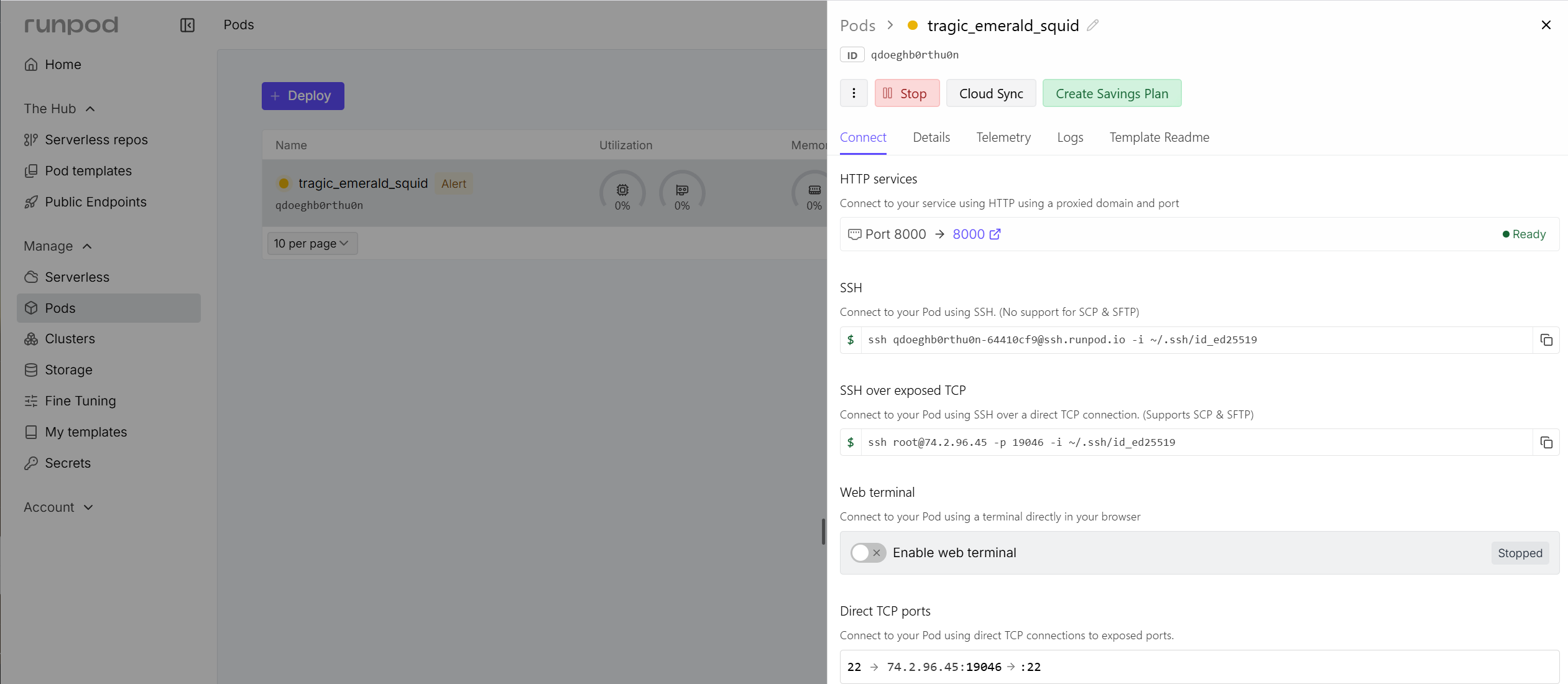
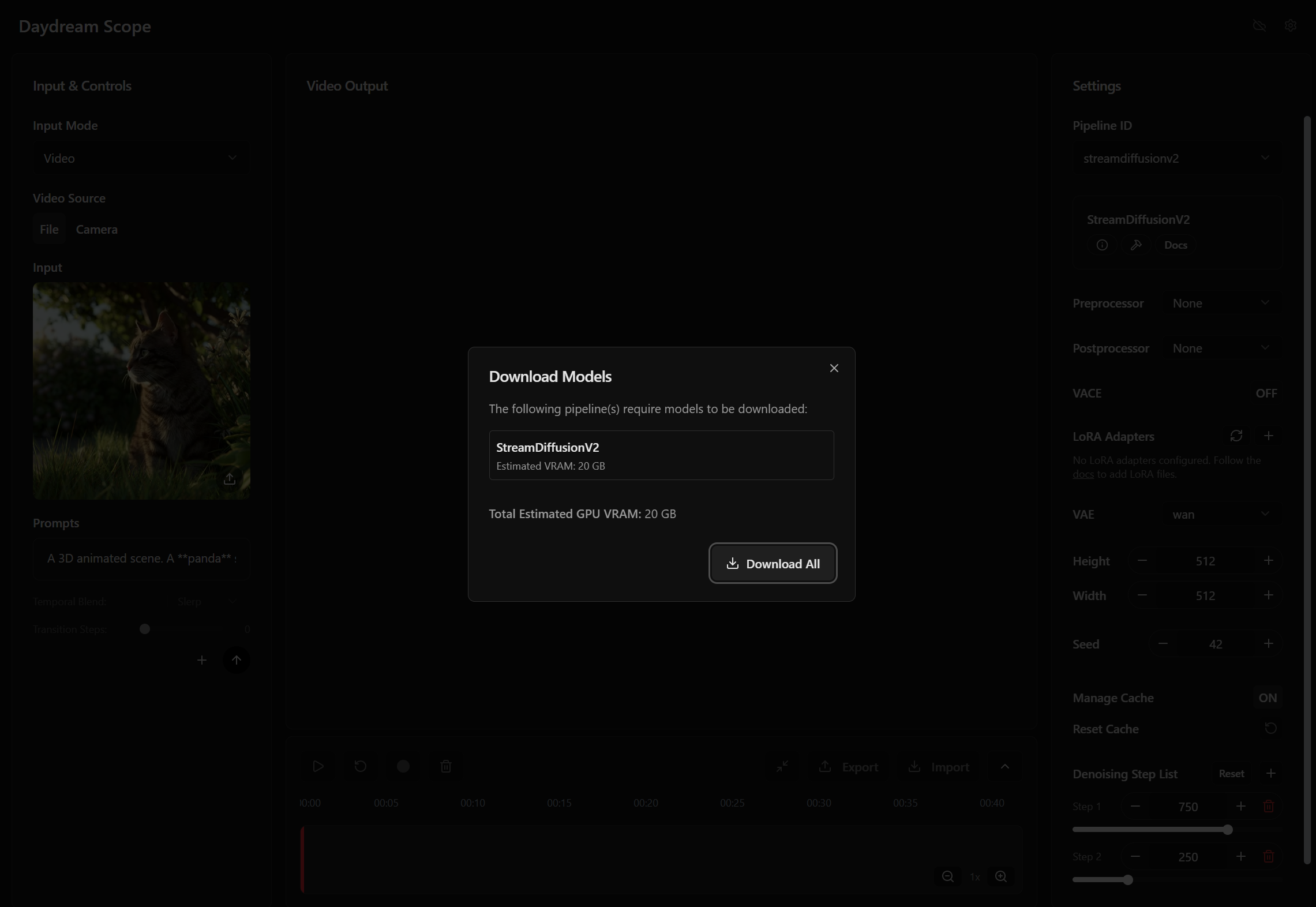
- Setup a Runpod instance using these instructions: https://docs.daydream.live/scope/getting-started/quickstart#cloud-runpod. After the instance is deployed, click on the HTTP Services > 8000 port link. Copy the URL and use it in Unity (step 3). Finally, make sure that the models are downloaded (streamdiffusion has better FPS performance).
- Download the Unity, and open it (preferrably with version 6000.0.50f1 LTS).
- Open scene DaydreamRunpod and find the DaydreamAPI gameobject. On its Inspector set the Runpod Base URL on the Runpod URL copied from step 1. Run the Game, and check the Console for errors. If there are no errors, then in a couple of seconds you will be able to see the camera feed of the computer and the Daydream response.
Unity Project:
- Setup a Runpod instance using these instructions: https://docs.daydream.live/scope/getting-started/quickstart#cloud-runpod. After the instance is deployed, click on the HTTP Services > 8000 port link. Copy the URL and use it in Unity (step 3). Finally, make sure that the models are downloaded (streamdiffusion has better FPS performance).
LLMs
Unity Project:
Libraries:
 https://assetstore.unity.com/packages/tools/ai-ml-integration/llm-for-unity-273604
0 Comments